

Linear Programming Excel Case Study: Maximize Profits
Struggling with Production Bottlenecks and Shrinking Profits? Discover how to solve real business challenges with this linear programming Excel optimize manufacturing profits and logistics in Excel. You’re Not Alone
If you’ve ever juggled limited resources, tight deadlines, and pressure to increase profits, welcome to the world of operations management. For many businesses—especially in manufacturing—decision-making often feels like guesswork. But what if you could remove the guesswork? Enter Linear Programming (LP) —a mathematical approach to finding the best outcome in complex situations. And yes, you can do it all with Excel. This is where our linear programming Excel case study becomes your step-by-step guide.
In this linear programming Excel case study, we’re kicking off a case study series where we show how to solve real-world problems using LP in Excel. Today’s focus? Optimizing profits for a furniture manufacturer.
Whether you’re a student, analyst, or small business owner, you’ll walk away knowing how to:
- Translate real business challenges into LP models
- Build and solve models in Excel using Solver
- Interpret results and apply them to business decisions
Let’s get started with our first linear programming Excel case study.
Real-World Linear Programming Excel Case Study in Manufacturing
Understanding the Optimization Problem in Manufacturing
The Company
Imagine a mid-sized furniture manufacturer producing chairs and tables. Each product requires a combination of machine hours, labor, and raw materials (wood).
Business Objective
The company wants to maximize its weekly profit by producing the optimal mix of chairs and tables, given the limited availability of resources.
Resources Available This Week:
- Carpentry Machine Hours: 360 hours
- Finishing Machine Hours: 120 hours
- Labor Hours: 200 hours
- Wood Units: 400 units
Product Requirements and Profit
Resource Table
| Product | Profit/Unit | Carpentry Hours | Finishing Hours | Labor Hours | Wood Units |
|---|---|---|---|---|---|
| Chairs | $20 | 4 | 2 | 3 | 5 |
| Tables | $30 | 6 | 4 | 4 | 8 |
The challenge: What quantity of chairs and tables should be produced to maximize profit while staying within resource limits?
How to Build a Linear Programming Excel Model Step-by-Step
Step 1: Define the Decision Variables
Let:
x= Number of Chairs to producey= Number of Tables to produce
These are our decision variables.
Step 2: Write the Objective Function
Our goal is to maximize profit:
Maximize: Z = 20x + 30y
In Excel:
- Create a cell for
xandy(input values) - Create a formula cell:
=20*x + 30*y
Step 3: Write the Constraints
Each resource imposes a constraint:
- Carpentry: 4x + 6y ≤ 360
- Finishing: 2x + 4y ≤ 120
- Labor: 3x + 4y ≤ 200
- Wood: 5x + 8y ≤ 400
- Non-negativity: x ≥ 0, y ≥ 0
Translate these into Excel formulas using SUMPRODUCT. These constraints are the backbone of our linear programming Excel case study model.
Excel Solver Setup for Linear Programming in Manufacturing
Step 1: Spreadsheet Layout for LP Model
Create a table like this:
Solver Input Table
| Item | Chairs (x) | Tables (y) | Total | Constraint |
| Profit | 20 | 30 | Maximize | |
| Carpentry Hrs | 4 | 6 | <= 360 | |
| Finishing Hrs | 2 | 4 | <= 120 | |
| Labor Hrs | 3 | 4 | <= 200 | |
| Wood Units | 5 | 8 | <= 400 |
Step 2: Use Solver for Excel Linear Programming Model
Set up the following parameters:
- Objective: Total Profit cell
- Goal: Maximize
- Variable Cells: Cells for
xandy - Constraints:
- Carpentry: Total ≤ 360
- Finishing: Total ≤ 120
- Labor: Total ≤ 200
- Wood: Total ≤ 400
- x, y ≥ 0
Select Solving Method: Simplex LP
Step 3: Solve and Interpret Results
Click Solve. Solver provides the optimal number of chairs and tables to produce.
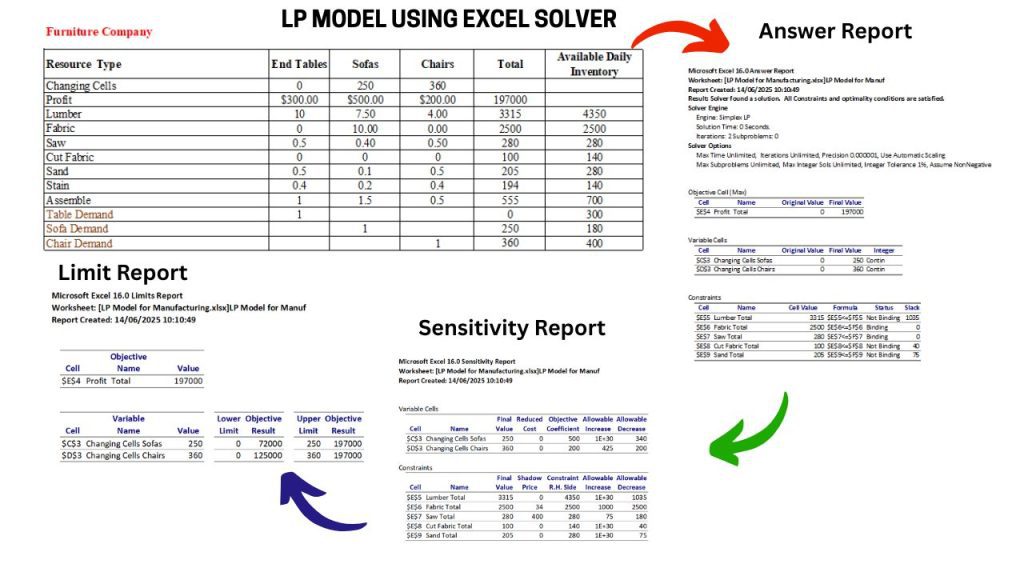
Results and Insights from the Linear Programming Excel Model
Optimal Production Mix and Maximum Profit
- Chairs: 40 units
- Tables: 20 units
- Max Profit: $1,400
Explanation of the LP Solution
- Tables are more profitable, but they consume more of the bottleneck resource: finishing hours.
- Producing more chairs allows us to stay within constraints while maximizing the use of available resources.
Binding vs. Non-Binding Constraints in Excel Solver
- Binding Constraints: Finishing Hours and Wood are fully used. They limit further optimization.
- Non-Binding Constraints: Carpentry and Labor have unused capacity.
This output confirms the efficiency of our linear programming Excel case study.
Business Impact of Excel Solver for LP Optimization
Before Solver, the company produced 50 chairs and 10 tables. That mix used resources inefficiently and returned only $1,150 in weekly profit.
By applying LP in Excel:
- Profit increased by 22%
- Resource usage was optimized
- Decision-making became data-driven
This demonstrates the practical value of a real-world linear programming Excel case study.
Preview: More Linear Programming Excel Case Studies Coming Soon
1. Logistics Optimization Case Study in Excel
“Optimizing Delivery Routes: Minimize Fleet Fuel Costs & Delivery Times Across 50 Locations.”
2. Financial Portfolio Optimization with Solver
“Building Balanced Investment Portfolios: Maximize Returns While Managing Risk Tolerance.”
Subscribe to follow the full linear programming Excel case study series!
Common Excel Solver Tips for Linear Programming
Key Excel Tips and Pitfalls in LP Models
| Tip/Pitfall | Explanation |
| ✅ Use Named Ranges | Improves readability (e.g., Carpentry_Hours_Used) |
| ⚠️ Check ‘Assume Linear Model’ | Required for Simplex LP problems |
| ✅ Generate Sensitivity Report | Analyze constraint slack and shadow prices |
| ⚠️ Don’t Forget Integer Constraints | If making fractional tables doesn’t make sense, enforce integer conditions |
These tips ensure your linear programming Excel case study yields accurate and actionable insights.
FAQ: Linear Programming Excel Case Study and Solver Basics
Q1: What is linear programming in Excel?
A: Linear programming is a method for optimizing a linear objective function, subject to linear constraints. Excel’s Solver tool allows users to easily model and solve these problems.
Q2: Can Solver handle multiple constraints?
A: Absolutely. Solver can handle several constraints—just add each in the Solver Parameters window.
Q3: What are binding constraints?
A: Constraints that are used up entirely in the optimal solution. They limit further optimization.
Q4: Can Solver handle integer-only problems?
A: Yes. Check “Make Unconstrained Variables Non-Negative” and add integer constraints for specific variables.
Q5: Is this relevant for small businesses?
A: Definitely. LP models help small firms make smarter decisions with limited resources. A linear programming Excel case study is ideal for illustrating this potential.
Your Next Step Toward Data-Driven Decision Making
You’ve just seen how linear programming can transform everyday business decisions. By building a simple Excel model and using Solver, you’ve unlocked a new level of clarity, efficiency, and confidence.
Now it’s your turn:
- Download our free Excel template [Download Excel Solver File]
- Subscribe to receive upcoming LP case studies
- Share this with a colleague who’s still stuck in spreadsheet guesswork
Want us to feature your business challenge in a future post? Comment below!


